

Blackboard Ultra
Blackboard Ultra Course is a new course view that offers a modern, intuitive, and personalized interface. With a simplified workflow and an accessible, fully responsive design, Ultra Course View will make it easier to teach and learn from any device.
What's new in Blackboard Ultra - Updates
Although Ultra Course View has been available since 2014, Anthology remains committed to continuously enhancing Blackboard. Each month, new features are released, ranging from significant functional updates to minor enhancements.
Below, you'll find a breakdown of the most recent features released. For more comprehensive information, you can also explore the full Release Notes for Learn SaaS or the Archived Learn SaaS Release Notes for older updates.
Instructors
- View activity log for automations: Instructors can now view an activity log for each course automation, showing the date and time it was triggered and the specific student and item involved. This feature enhances transparency by giving all instructors visibility into when automations occur and which students receive automated messages.
-
Grades Journey: Validate grades before submission, approval, or extract: Graders now see a red X in the Current Grade column for invalid grades and are blocked from submitting, approving, or extracting them. This update ensures clarity for graders about which grades are valid. This feature requires a Grades Journey license.
-
Grades Journey: Prevent manual extraction of unapproved grades: Graders now get an error message when they try to manually extract grades that are not in the Approved status. This feature prevents graders from sending unapproved grades to the SIS. This feature requires a Grades Journey license.
-
Usability Improvement for Document Block Layout: We've streamlined the options menu for Document Block Layout by adding sub menu options to change a block's row, size, and position. This improves usability for instructors creating Documents as well as improves accessibility for keyboard and screen reader users.
-
Expanded Question Options for True/False: Instructors now have more flexibility when creating binary-style questions, with additional display options that better align with varied instructional needs.
-
Improved Gradebook Download Options: When downloading the Gradebook, the option for whether to include hidden items is available only when the Gradebook has hidden items.
-
Improved performance for large multiple choice or multiple answer tests: We've optimized rendering of MCQ and True/False questions, significantly improving load times for large tests. For example, a 200-question test now loads in ~5 seconds, down from ~25 seconds, which equates to an 80% improvement.
Instructors and Students
- Enhanced multiple choice and multiple answer workflow:Updates to question setup provide a more intuitive experience, including updating the default answer options from 3 to 4 and improving controls for how students interact with questions (radio buttons for single answer responses and checkboxes for more than one answer response). These changes support greater flexibility in assessment design and an improved experience for students.
-
Video Studio: Use Knowledge Checks for Videos: Instructors can now embed ungraded knowledge check questions within videos to confirm comprehension and keep students engaged. Videos pause at designated points until students answer correctly, creating an interactive learning experience that reinforces key concepts.
-
Video Studio: Download Video for Offline Use: Users can now download Video Studio recordings to their local devices for offline viewing, giving instructors and students the flexibility to access content without an internet connection. Instructors can control download permissions for each recording, ensuring secure and convenient distribution of course materials.
-
Video Studio: Edit Description: Instructors and students can now add or edit titles and descriptions for Video Studio recordings, making it easier to provide context, summaries, or guidance for viewers before they watch. This enhancement improves clarity and helps highlight key topics or instructions within course videos.
-
Video Studio: Edit all entries of a speaker's name in a video transcript: Instructors can now edit all instances of a speaker’s name in a video transcript at once, making it faster and easier to maintain consistency across the content.
Administrators
- Granular Control of Achievements for Ultra via Institutional Hierarchy: Institutions can now register internal Blackboard features as configurable tools and control their visibility at the node level (e.g., campus or department), enabling scalable governance aligned with organizational structures.
-
Grade Export: Email a grade extract summary list: Administrators can now send a single email with a text file listing all course IDs included in a grade extract to selected administrative recipients. This update allows recipients to choose whether to receive a single email per extract instead of an email for each course, streamlining communication.
Administrators and Instructors
- Improved Automation placement on course home page: The heading for the section on the Course Content page that includes automations is now titled Course Assistants instead of Virtual Assistant and does not contain the AVA logo. This makes it clear that automations do not require an AVA license and prevents confusion for admins and instructors.
All Users
- Navigate courses and tools faster with refreshed user interface: The updated Blackboard interface streamlines navigation with a cleaner Base Navigation layout, full-screen course pages, and a new Home button for easier orientation. These changes improve usability, reduce clicks, and optimize screen space for faster access to courses, grading, and settings.
Ultra Support
Self-help Resources
Explore a number of resources to help you navigate Blackboard Ultra. Whether you are a new user or looking for answers to common questions, you’ll find step-by-step guides, video tutorials, and more.
Training
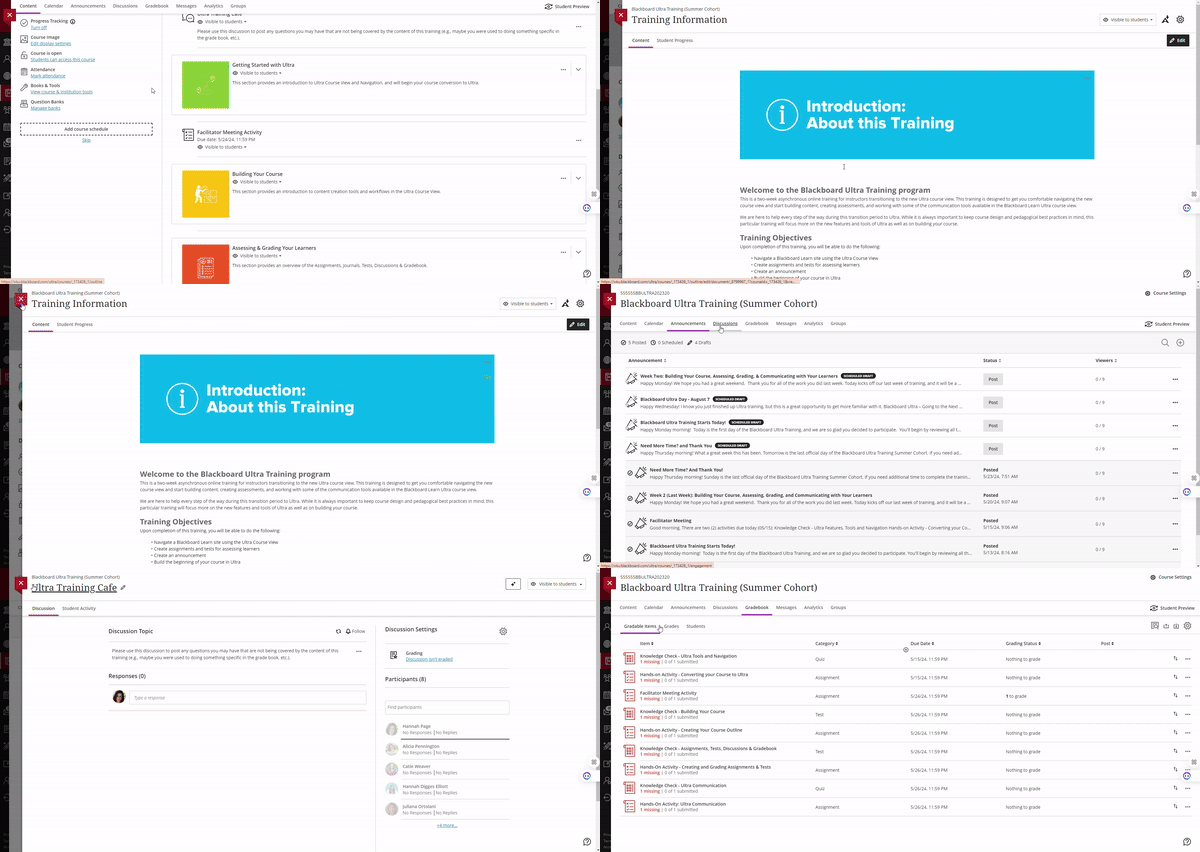
The ITS: Blackboard Ultra Training is a completely self-paced training through ITS that focuses on the foundations for using our learning management system and associated tools. To self-enroll in this training, you must log into Blackboard, select My WKU Bb and scroll down to the ITS: Blackboard Ultra Training link. Clicking on the link will enroll you in the training that you will then find within the Courses tab in the Blackboard menu. Without completing this training, you won’t be able to create a Backboard course site.
Need Help?
If you need assistance with Blackboard Ultra please contact ITS at 270-745-700, or submit a support ticket. You can also reach out to CITL at citl@wku.edu.
Some of the links on this page may require additional software to view.